SF-666R Microphone: Reducing Keyboard Noise in Voiceovers
Lorvyo Editorial
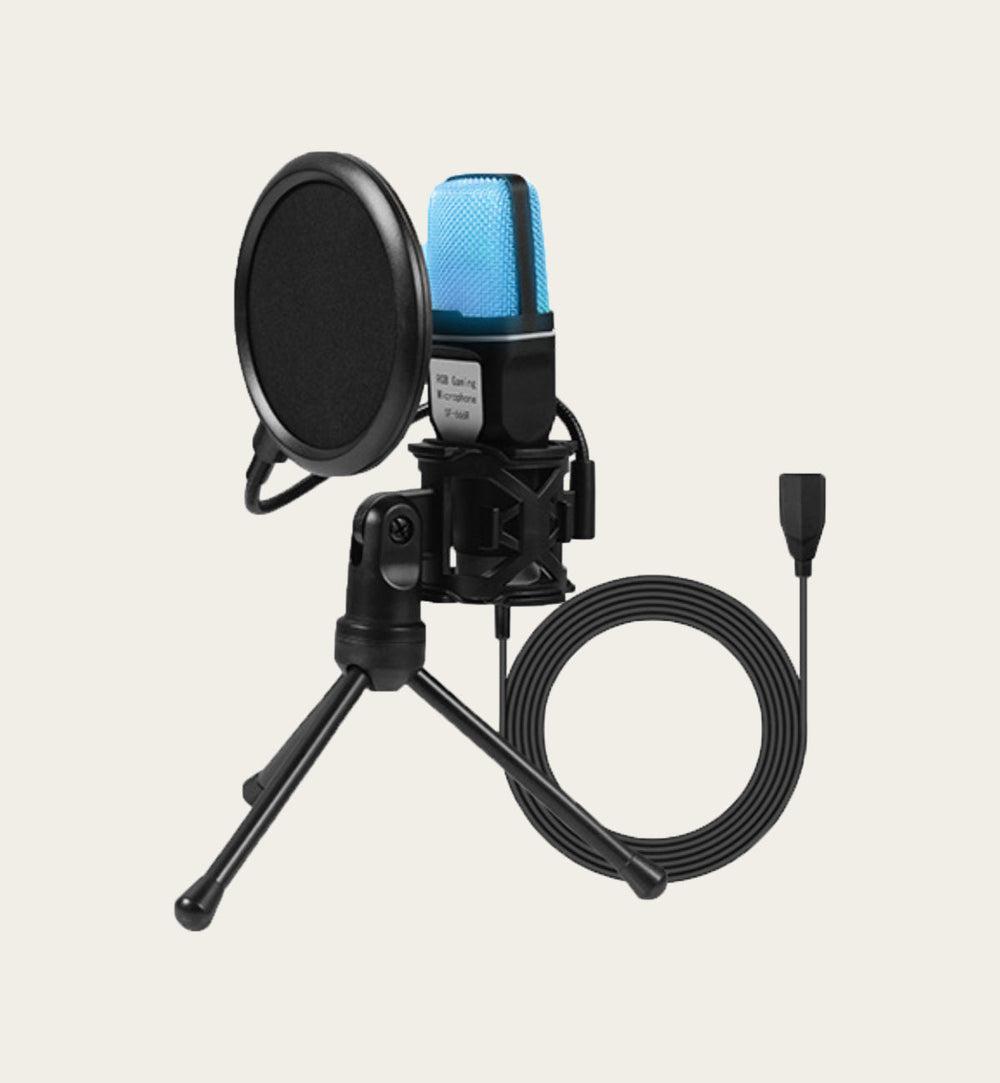
Arrange an SF-666R desk recording around typing, tripod placement and short voiceover takes.
The SF-666R desktop kit includes a tripod and pop-filter setup. For screen tutorials or voiceovers, the main distraction may come from the desk itself: typing, mouse clicks and movement close to the microphone.
Separate narration from busy typing
Consider recording the spoken explanation after the screen capture when your workflow allows it. That lets you focus on clear speech without typing at the same moment. If you need live narration, plan pauses around the loudest actions instead of expecting software to remove every click.
Inspect the physical arrangement
Place the tripod on a stable surface and check whether tapping the desk appears in a test recording. Keep the microphone and pop filter positioned according to the supplied instructions. RGB lighting changes the appearance of the setup; it does not establish isolation from desk vibration or room sound.
Select and test the input
On a computer, confirm the intended microphone in the operating system and recording app. Record a few normal sentences and listen for distortion or unwanted desk sounds. Adjust one setting or position at a time. Keep a short reference clip so the next session can start from a known arrangement.
Details from the current product listing
| Model | SF-666R |
|---|---|
| Format | Desktop microphone |
| Lighting | Multicolor RGB |
Check the selected option and current product page for the supplied configuration.
Does a pop filter remove keyboard clicks?
It is not a general guarantee against desk noise. Microphone position, room conditions and when you type still matter.
Explore the product
Lorvyo SF-666R USB Desktop Microphone Kit — view current options, images and availability.
For a different angle: SF-666R USB Microphone: Set Up a Clearer Desk Recording.
Related reading: S53 Wireless Microphone: Using Mute With Confidence.